

This guide will help you learn how to change the Game Mode on your Hytale Server.
Click here to order your Hytale server with Citadel Servers today!
One of the best parts of running a Hytale server is tailoring the gameplay experience to fit your community’s style. Whether you want a relaxed, creative environment, a competitive survival challenge, or something in between, game modes give you the flexibility to shape how players interact with your world. By learning how to change the game mode, you’ll gain full control over the type of experience your server offers. In this guide, we’ll walk through the commands needed to switch modes, explain what each mode offers, and share tips for choosing the right one for your community.
NOTE: At present, the only game modes available in early access are Exploration (listed as ‘Adventure’ on servers) and Creative
Changing the Game Mode on your Hytale Server
1. Log in to your Game Control Panel and navigate to your service.
2. Before making any modifications, stop the server from running by clicking the Stop button.

3. Navigate to the Web-Console Tab.
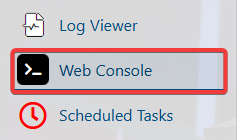
4. In the Web-Console tab, run the following command:
/gamemode <survival/creative> <player>
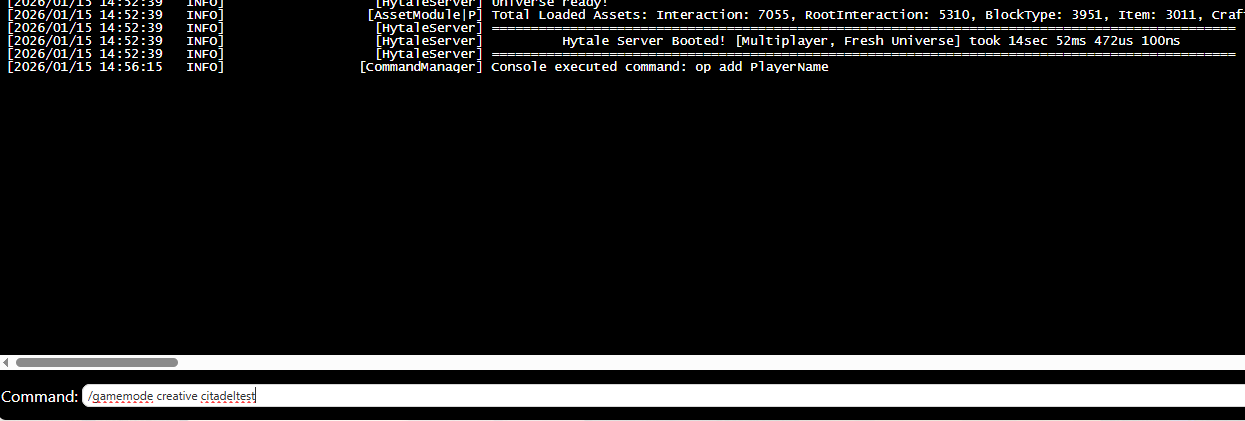
NOTE: The player must be actively logged in to the server for this command to work.
5. Server admins can also execute this command directly in-game.
How to Change the Default Game Mode on a Hytale Server
Note: This method only affects new players joining the server. Existing players must manually change their game mode using a command.
1. Log in to your Game Control Panel and navigate to your service.
2. Before making any modifications, stop the server from running by clicking the Stop button.
3. Navigate to the Configuration Files Tab.
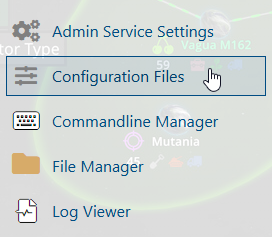
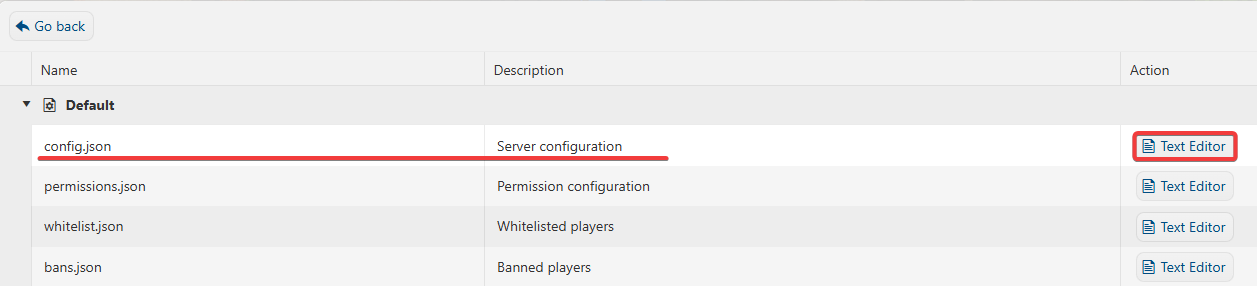
4. In the Configuration Files, look for the config.json file and click the Text Editor.
5. In the Text Editor, look for the Gamemode line, and choose between adventure or creative.
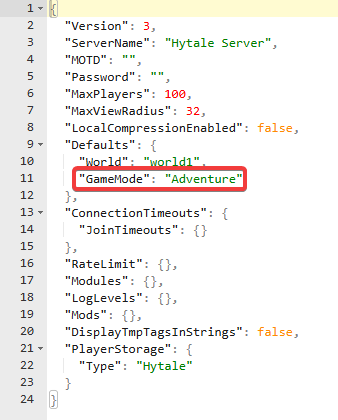
6. After editing, click the Save button to apply the changes to your server.

Did the above information not work for you?
Please click here to contact our support via a ticket.