

In 7 Days to Die, the Shared XP Range setting determines how far players can be from one another while still receiving shared experience points (XP) when defeating zombies and other enemies. This setting is especially useful for multiplayer servers where players want to explore, complete quests, gather resources, and fight enemies together without having to stay close at all times. By modifying the Shared XP Range, server owners can customize how experience points are distributed among nearby players and adjust the distance at which teammates can benefit from shared XP. Increasing the range lets players spread out over a larger area while still earning shared experience, making cooperative gameplay more flexible. On the other hand, reducing the range encourages players to stay closer together, promoting teamwork and coordinated combat. The Shared XP Range is controlled through the PartySharedKillRange property in your server's configuration file, serverconfig.xml. This setting determines the maximum distance party members can be apart while receiving shared kill XP and credit for party quest kill objectives. The default value is typically 100, which you can increase or decrease depending on your preferred gameplay experience. In this guide, we'll walk you through how to locate and modify the PartySharedKillRange setting on your 7 Days to Die server. Whether you want to give your players more freedom to explore independently or encourage closer cooperation during combat and quests, adjusting this setting allows you to tailor the multiplayer experience to your community's preferences. Before making any changes, we recommend stopping your server and creating a backup of your existing configuration file. This helps prevent configuration changes from being overwritten and allows you to restore your previous settings if needed. Once you've saved your changes, restart the server for the updated Shared XP Range to take effect.
Managing XP Sharing Distance Settings
1. Log in to your Game Control Panel.
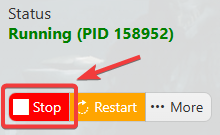
2. Before making any modifications, stop the server from running by clicking the Stop button.
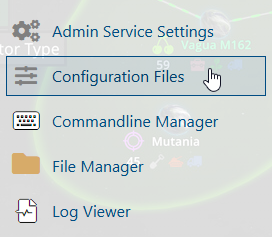
3. Navigate to Configuration Files.
4. In the Configuration Files section, locate the serverconfigmain.xml file and click Text Editor to open and edit the file.

5. Locate the <!-- Multiplayer --> line and modify the PartySharedKillRange value to set the maximum distance (in blocks) players can be apart while still sharing kill experience (XP).

6. After editing, click the Save button to apply the changes.

