

In 7 Days to Die, the Experience Gain Multiplier (XP Multiplier) determines how quickly players earn experience points (XP) through various in-game activities, such as killing zombies, completing quests, crafting items, and gathering resources. Adjusting this setting allows server owners to customize the pace of player progression and create a gameplay experience that suits their community's preferences. By modifying the XP Multiplier, you can increase or decrease the amount of experience players receive. For example, setting the multiplier to 200% doubles the amount of XP earned, allowing players to level up and unlock skills faster. Conversely, setting it to 50% reduces XP gains by half, creating a slower progression system that encourages players to spend more time developing their characters. The default setting is typically 100%, which provides the standard experience gain rate. In this guide, we'll walk you through how to locate and adjust the Experience Gain Multiplier on your 7 Days to Die server. Whether you want to accelerate player progression, maintain the standard leveling experience, or introduce a more challenging survival environment with slower XP gains, configuring this setting gives you greater control over your server's progression system. Before making any changes, we recommend stopping your server and creating a backup of your existing configuration. After modifying the desired XP Multiplier, save your changes and restart your server if required by your hosting panel to ensure the updated settings take effect.
Setting Custom XP Multipliers
1. Log in to your Game Control Panel.
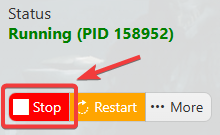
2. Before making any modifications, stop the server from running by clicking the Stop button.
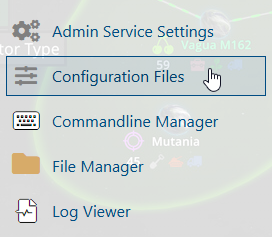
3. Navigate to Configuration Files.
4. In the Configuration Files section, locate the serverconfigmain.xml file and click Text Editor to open and edit the file.

5. Locate the <!-- Difficulty --> line, adjust the XPMultiplier property by modifying its value to your desired experience gain multiplier.

XP gain multiplier (percentage in whole numbers)
6. After editing, click the Save button to apply the changes.

